
1. The Windows Domain#
- Why learn Active Directory? In large corporate networks, it is impossible to manually configure or troubleshoot thousands of computers individually. Centralized management is a must.
- Core Concepts:
- Windows Domain: A group of users, computers, and printers under the administration of a given business.
- Active Directory (AD): The central repository (database) that stores network configuration.
- Domain Controller (DC): The server that runs the Active Directory services. It is the “brain” of the domain.
2. Active Directory#
1. Active Directory Domain Service (AD DS)#
This is the core of any Windows domain. It acts as a massive “catalogue” holding the information of all the things that exist on your network. Each of these things is known as an Object. Examples include Users, Machines, Groups, Shares, etc.
2. Notable AD Objects:#
- Users: One of the most common object types. Users are known as Security Principals, meaning they can be authenticated by the domain and subsequently assigned privileges over resources. There are two types:
- People: Represents employees in the organization.
- Services: Used by background services like IIS or MSSQL. Service users only have the specific privileges needed to run their service.
- Machines: Every computer that joins the AD domain gets a machine object created for it. Machines are also considered Security Principals:
- Machine account names end with a
$sign (e.g.,DC01$). - Machine passwords are automatically rotated and comprise 120 random characters.
- The machine account is a local administrator on that specific computer.
- Machine account names end with a
- Security Groups: Used to grant access rights. Instead of granting permissions to 1000 single users, you add them to a group, and they automatically inherit the group’s privileges. Groups can contain users, machines, and even other groups (Nested Groups). Security groups are also security principals.
- Important Default Security Groups in AD:
| Security Group | Description |
|---|---|
| Domain Admins | Have administrative privileges over the entire domain, including the DCs. |
| Server Operators | Can administer DCs but cannot change any administrative group memberships. |
| Backup Operators | Allowed to access any file, ignoring permissions, to perform data backups. |
| Account Operators | Can create or modify other accounts in the domain. |
| Domain Users/Computers/Controllers | Includes all existing user accounts, computers, or DCs in the domain. |
3. Active Directory Users and Computers (ADUC)#
- To configure objects, log in to the DC and open the ADUC tool. You will see a hierarchy with default containers:
- Builtin: Contains default groups available to any Windows host.
- Computers: Any newly joined machine is placed here by default.
- Domain Controllers: Default OU containing the network’s DCs.
- Managed Service Accounts: Holds accounts used by services.
- Besides these, you can create arbitrary containers called Organizational Units (OUs) to structure your network and apply Policies.
4. Security Groups vs. OUs#
| Criteria | OUs (Organizational Units) | Security Groups |
|---|---|---|
| Main Purpose | Used for applying Policies. Example: Forcing a specific desktop wallpaper, restricting Control Panel access, etc. | Used for granting Permissions over resources. Example: Allowing access to a shared folder or network printer. |
| Membership Limit | A user/machine can only be a member of ONE OU at a time (you cannot apply two different sets of conflicting policies to one user). | A user/machine can be part of MANY GROUPS simultaneously. |
💡 Summary: An OU is like the department you work in (you follow its specific rules). A Security Group is like the keychain you carry (the more keys you have, the more doors you can open).
3. Managing Users in AD#
1. Deleting Extra OUs and Users#
- By default, OUs are protected against accidental deletion. If you try to delete one, you’ll get an error.
- To bypass this protection:
- In ADUC, go to the View menu and enable Advanced Features.
- Right-click the OU you want to delete -> Properties.
- Go to the Object tab -> Uncheck Protect object from accidental deletion.
- Click OK. You can now delete the OU.
2. Delegation#
- Delegation allows you to grant users specific privileges to perform advanced tasks on specific OUs without making them Domain Administrators.
- How to delegate (e.g., granting IT Support user Phillip password reset rights over the Sales OU):
- Right-click the Sales OU -> select Delegate Control.
- Add the user
phillipand click Check Names. - In the tasks window, check Reset user passwords and force password change at next logon.
- Click Next -> Finish. Phillip can now reset passwords for Sales employees.
3. Using PowerShell to Reset Passwords (As Phillip)#
Since Phillip is a low-privilege user, he cannot open the ADUC GUI. He must use PowerShell.
Steps:
- Log in via RDP using Phillip’s credentials.
- Run the following command to reset Sophie’s password:
1Set-ADAccountPassword sophie -Reset -NewPassword (Read-Host -AsSecureString -Prompt 'New Password') -Verbose- Provide the new password. Ensure it meets the domain’s Password Policy:
- Minimum length (usually 7+ characters).
- Complexity: Requires 3 out of 4 character types (Uppercase, Lowercase, Numbers, Special characters).
- Cannot match previous password history.
(Example:
NewPassword123!)
- Best Practice: Since IT shouldn’t know user passwords, force Sophie to change it again upon her next login:
1Set-ADUser -ChangePasswordAtLogon $true -Identity sophie -Verbose- The password reset process is complete.
4. Managing Computers in AD#
- By default, all joined machines go into the
Computerscontainer. This is not ideal as you cannot apply different Group Policy Objects (GPOs) to different device types. - Best practice segregates machines into three main OUs:
- Workstations: PCs or Laptops used by regular users. Privileged accounts (like Domain Admins) should never log into workstations to avoid credential theft. Prefixes often include PC or LPT.
- Servers: Devices providing services 24/7. They require strict security policies and should not auto-lock or sleep like workstations. Prefixes often include SVR or SRV.
- Domain Controllers: The most sensitive devices containing hashed passwords for the environment. Windows automatically creates a
Domain ControllersOU for them.
5. Group Policies#
1. Group Policy Object (GPO)#
- A GPO is a collection of settings that can be applied to OUs. It is divided into two sections:
- Computer Configuration: Applies to the machine itself, setting a baseline regardless of who logs in (e.g., Auto lock screen after 5 minutes).
- User Configuration: Applies to specific user identities, following them to any machine they log into (e.g., Restrict Control Panel access).
2. Application and Inheritance:#
- You configure GPOs using the Group Policy Management (GPM) tool.
- Linking: After creating a GPO, you must link it to an OU or Domain for it to take effect.
- Inheritance: A GPO applied to a parent OU/Domain will cascade down and affect all child OUs under it.
- Security Filtering: By default, GPOs apply to all Authenticated Users in the linked scope. Filtering allows you to apply it only to specific users or computers.
3. GPO Distribution (SYSVOL):#
- GPOs are distributed via a network share called SYSVOL, located at
C:\Windows\SYSVOL\sysvol\on DCs. Computers periodically sync their GPOs from here (typically every 90 minutes). - To force an immediate update, run this command on the client machine:
| |
4. Practical Scenarios#
- Restrict Access to Control Panel: (Targeting non-IT users)
- Policy Type: User Configuration.
- Steps:
- Open
Group Policy Management. - Create a new GPO named
Restrict Control Panel Access. - Right-click the GPO ->
Edit. - Navigate to:
User Configuration->Policies->Administrative Templates->Control Panel. - Right-click
Prohibit access to Control Panel and PC settings->Edit->Enable->OK. - Link the GPO to the relevant user OUs (like Sales, Marketing) by dragging it. Do not link it to the IT OU.
- Open
- Auto Lock Screen After 5 Minutes:
- Policy Type: Computer Configuration.
- Steps:
- Create a new GPO named
Auto Lock ScreenandEditit. - Navigate to:
Computer Configuration->Policies->Windows Settings->Security Settings->Local Policies->Security Options. - Double-click
Interactive logon: Machine inactivity limit. - Select
Define this policy settingand enter300seconds ->OK. - Tip: Link this GPO directly to the root domain (
thm.local). Since it contains Computer Configurations, OUs with only users (like Sales) will simply ignore it, while the Workstations and Servers OUs will inherit and apply it.
- Create a new GPO named
6. Network Authentication Protocols#
- All credentials are stored in the DC. When authenticating to a network service, the service must verify the credentials with the DC.
- There are two main protocols:
- Kerberos: The default, modern, and most secure protocol in recent Windows versions.
- NetNTLM: A legacy protocol kept for compatibility purposes.
1. Kerberos Authentication (The Ticket System)#
It involves a 3-step process:
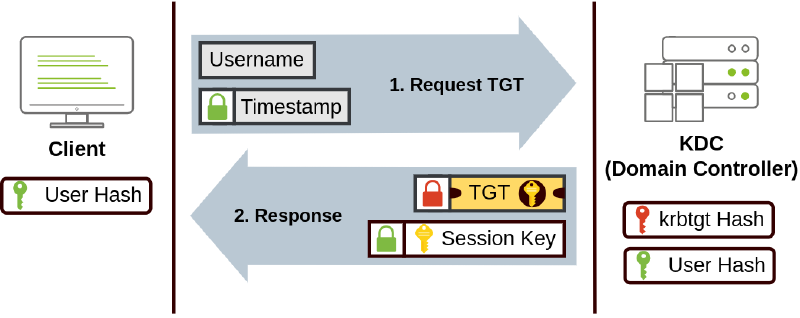
Step 1: Request TGT#
- Action: The client sends their username and a timestamp (encrypted using their password hash) to the Key Distribution Center (KDC) on the DC.
- Response: The KDC verifies it. If successful, it sends back a Ticket Granting Ticket (TGT) and a Session Key.
- Security: The TGT is encrypted using the password hash of the special
krbtgtaccount. The client cannot read the TGT; they can only hold it.
Step 2: Request TGS#
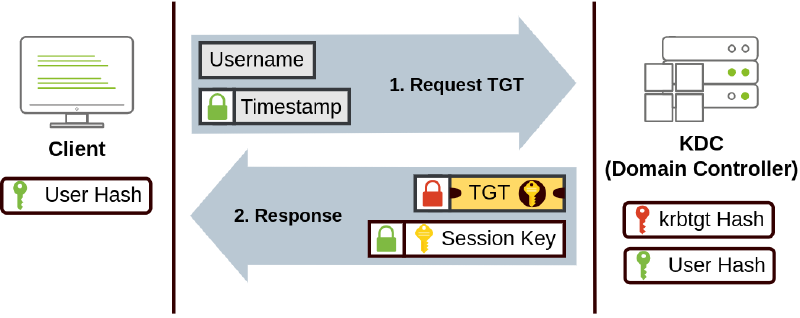
- Action: When the client wants to access a service (e.g., MSSQL), they send the TGT + a Service Principal Name (SPN) to the KDC.
- Response: The KDC decrypts the TGT to verify the client. It then issues a Ticket Granting Service (TGS) ticket and a Service Session Key.
- Security: The TGS is encrypted using the Service Owner Hash (the password of the account running the service). The client still cannot read it.
Step 3: Authenticate to the Service#
- Action: The client presents the TGS to the target service.
- Result: The service uses its own password hash to decrypt the TGS. If successful, it retrieves the Service Session Key and grants the client access.
2. NetNTLM Authentication (Challenge-Response)#
NetNTLM never transmits the password over the network. It uses a 6-step mechanism:
- Authentication Request: The client asks the server for access.
- Challenge: The server generates a random number (Challenge) and sends it to the client.
- Response: The client combines their NTLM password hash with the challenge to solve it, sending the Response back to the server.
- Forward: The server forwards the Challenge and the Response to the Domain Controller.
- Verification: The DC retrieves the user’s NTLM Hash from its database and solves the challenge itself. * If the DC’s answer matches the client’s Response, authentication succeeds. * The DC sends the Allow/Deny result back to the server.
- The server forwards the final result to the client.
Note: If a local account is used, the server skips steps 4 and 5. It verifies the response locally using its SAM database.
7. Trees, Forests, and Trust Relationships#
1. Trees#
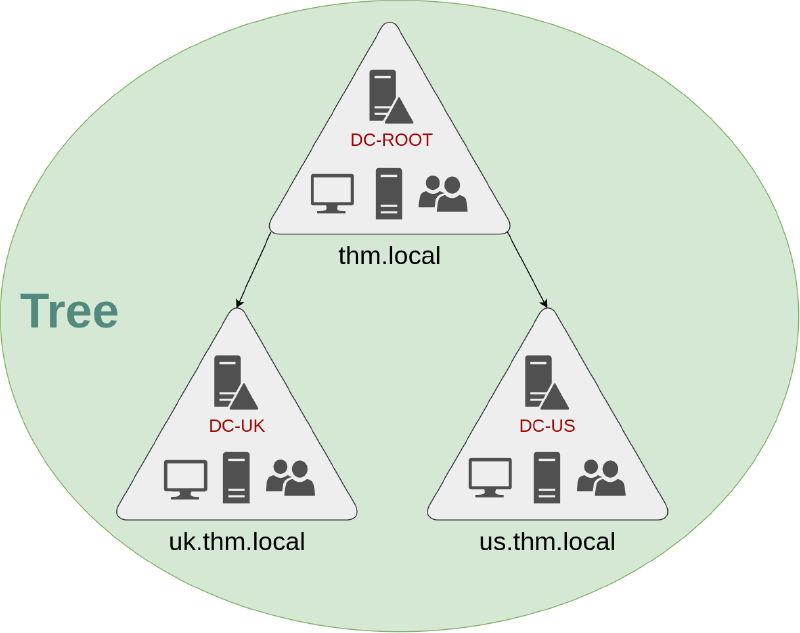
- Definition: A Tree is a collection of domains that share the same namespace.
- Structure: If your root domain is
thm.local, you can have child subdomains likeuk.thm.localandus.thm.local.
- Benefits:
- Granular Control: The UK branch has its own DC and Domain Admins who cannot interfere with the US branch.
- Independent Policies: GPOs can be configured independently for each domain.
- New Role: Domain Admins are restricted to their specific branch. To have administrative privileges over all domains in the enterprise, a user must be in the Enterprise Admins group.
2. Forests#
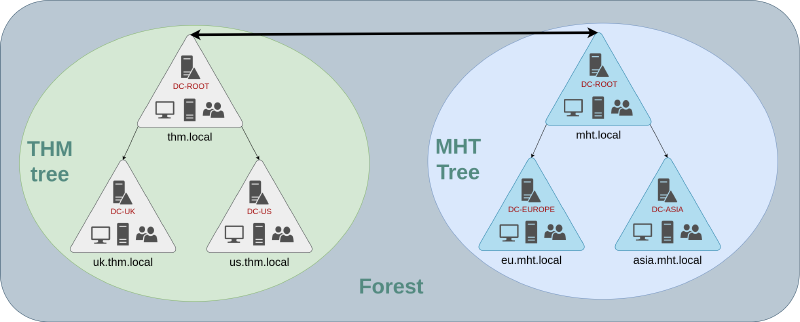
- Definition: A union of several trees with different namespaces (e.g.,
thm.localandmht.localmerging) within the same network. - Features: Merged companies can share a network while maintaining their distinct naming structures and IT departments.
3. Trust Relationships#
- Definition: A link between domains that allows a user from one domain to be authorized to access resources in another.
- Two Types of Trusts:
- One-way Trust:
- The direction of the trust is opposite to the access direction.
- Example: Domain AAA (Resource) trusts Domain BBB (Users). Result: A user in BBB can access resources in AAA. A user in AAA cannot access BBB.
- Two-way Trust:
- Both domains mutually trust each other. Users can access resources across both domains.
- By default, joining domains under a tree or forest forms a two-way trust.
- One-way Trust:
⚠️ Security Note: Establishing a trust relationship does not automatically grant access to all resources. It only allows authorization to occur. Access is still dictated by the specific Permissions you assign to files/folders.